Browse resources in the Console
Use the resource list in the Console to find resources across every connected control plane, narrow the list to what you care about, and open a resource to see its health, relationships, events, and YAML.
Before you begin
- Sign in to the Hub Console with an account that has permission to read resources in at least one realm. See the Roles reference.
- Connect at least one control plane or space, so the list has resources to show.
Open the resource list
- Select a realm in the header. The list shows that realm's resources.
- Open the navigation menu, then choose Resources under Insights.
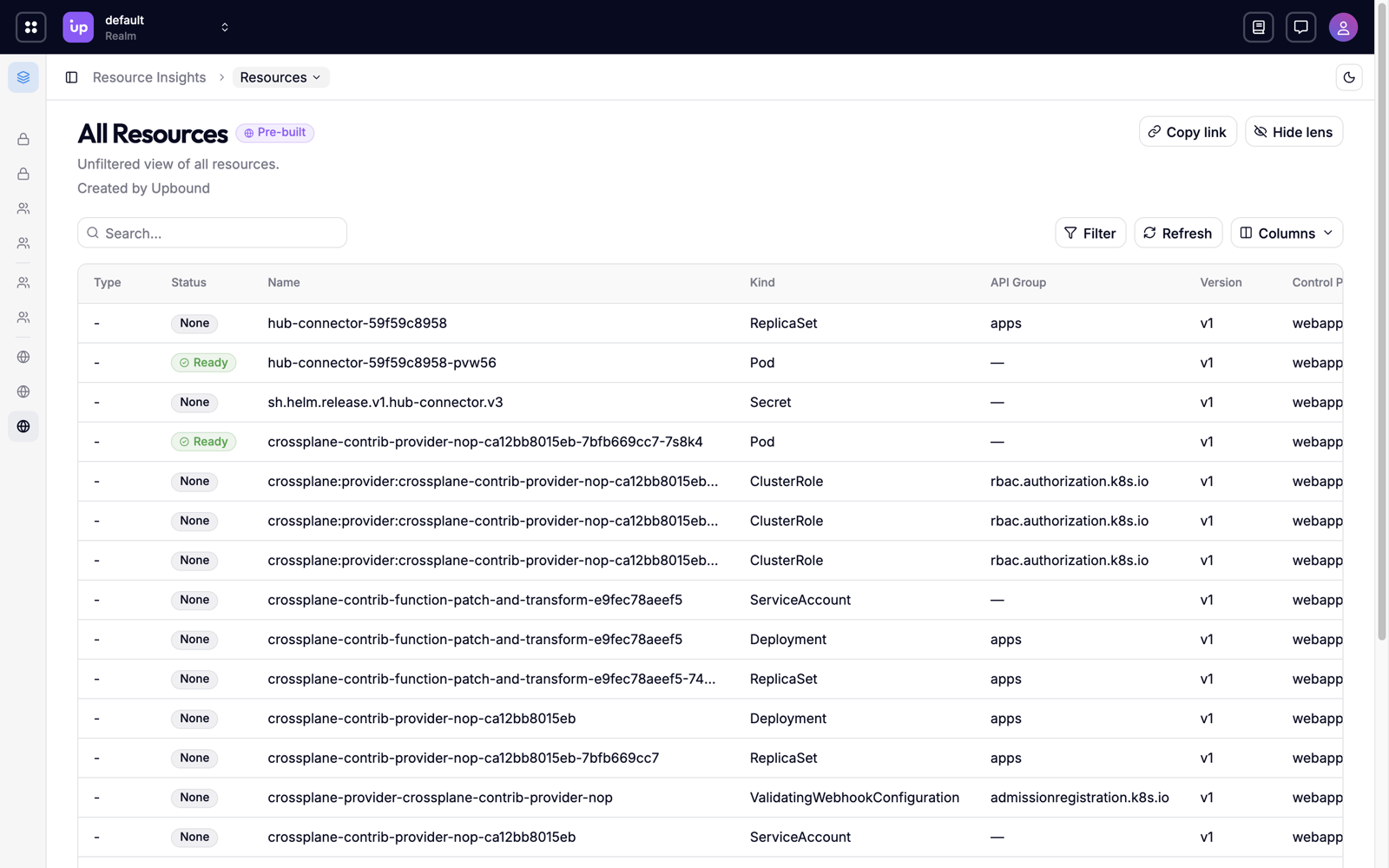
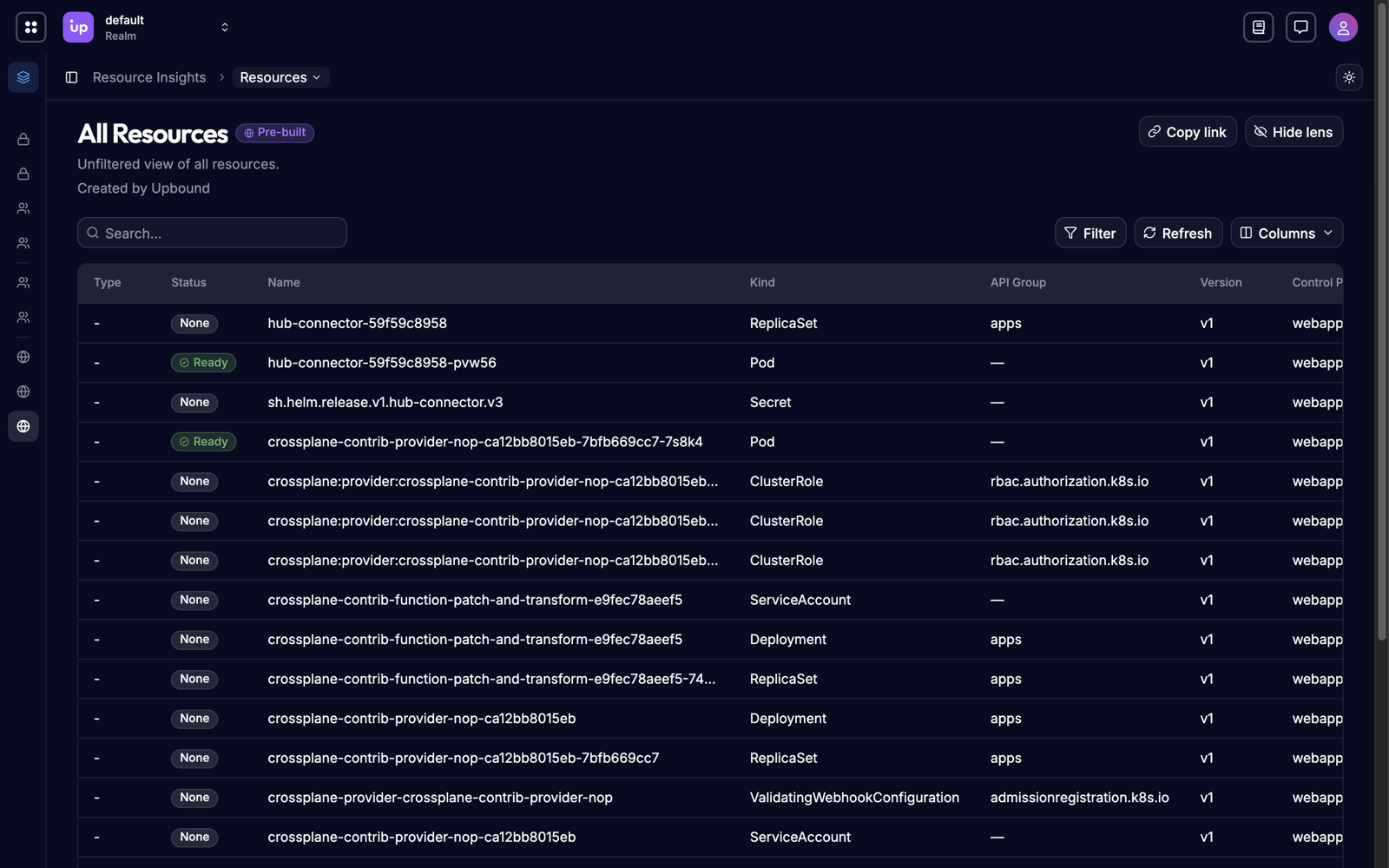
The list shows every resource in the realm, with the total count above the table:
Search the list
Type in the search box above the table. Search matches any part of a resource's
name, namespace, kind, API group, API version, UID, or Crossplane type, so
payments finds both a namespace and a resource name containing that word.
Filter the list
-
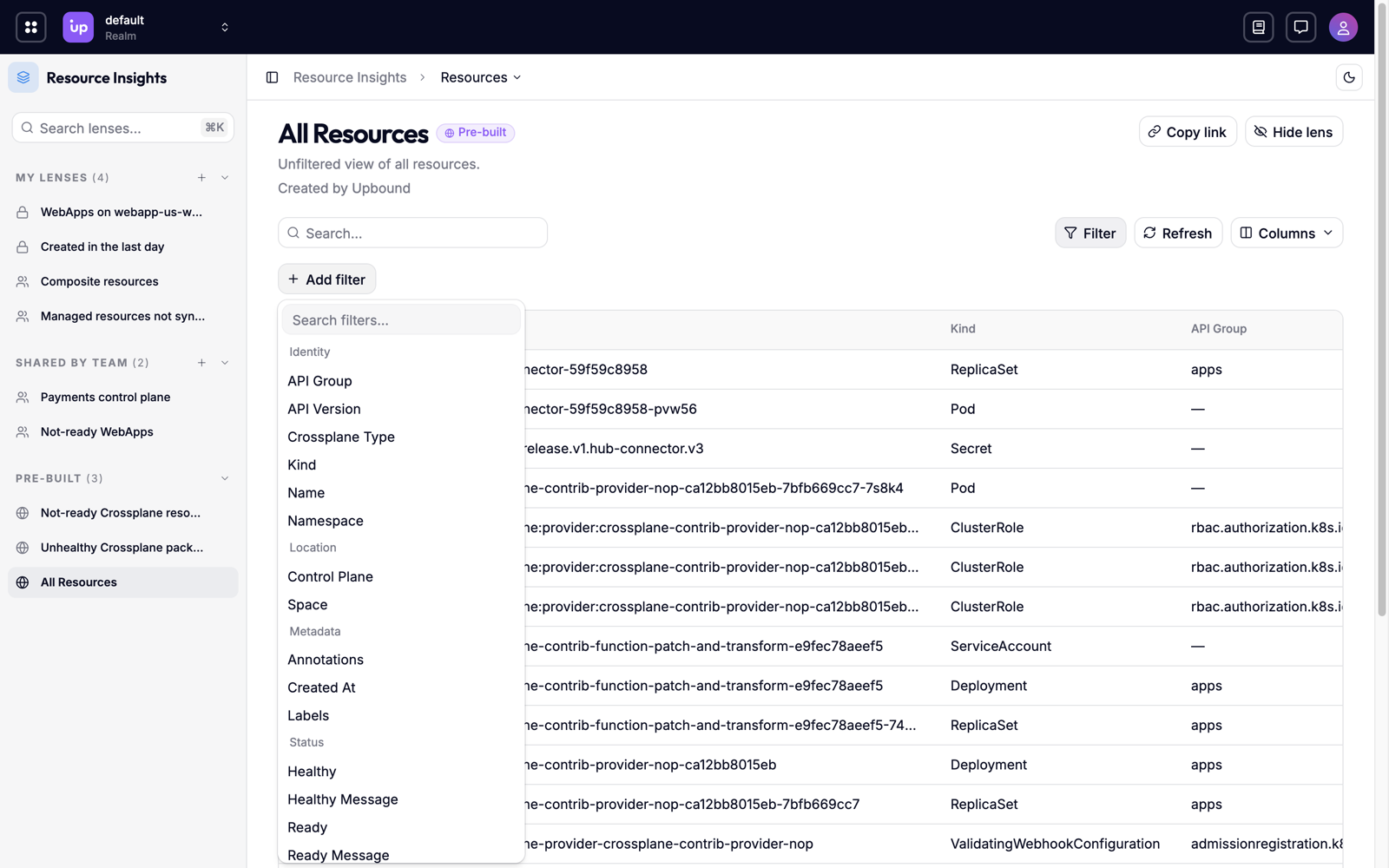
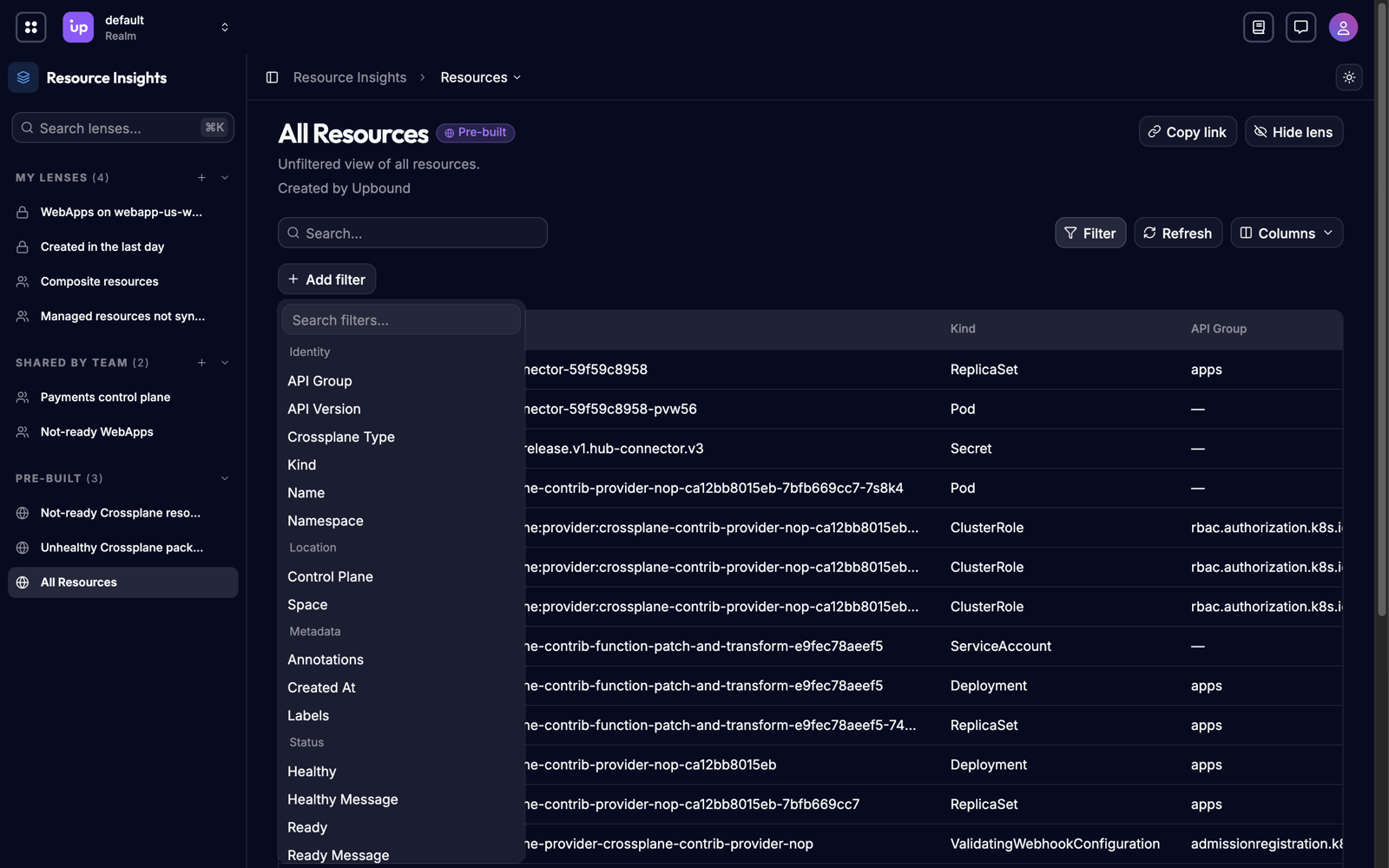
Choose Filter, then Add filter. The menu lists the fields you can filter on:
-
Choose a field, then the values to match.
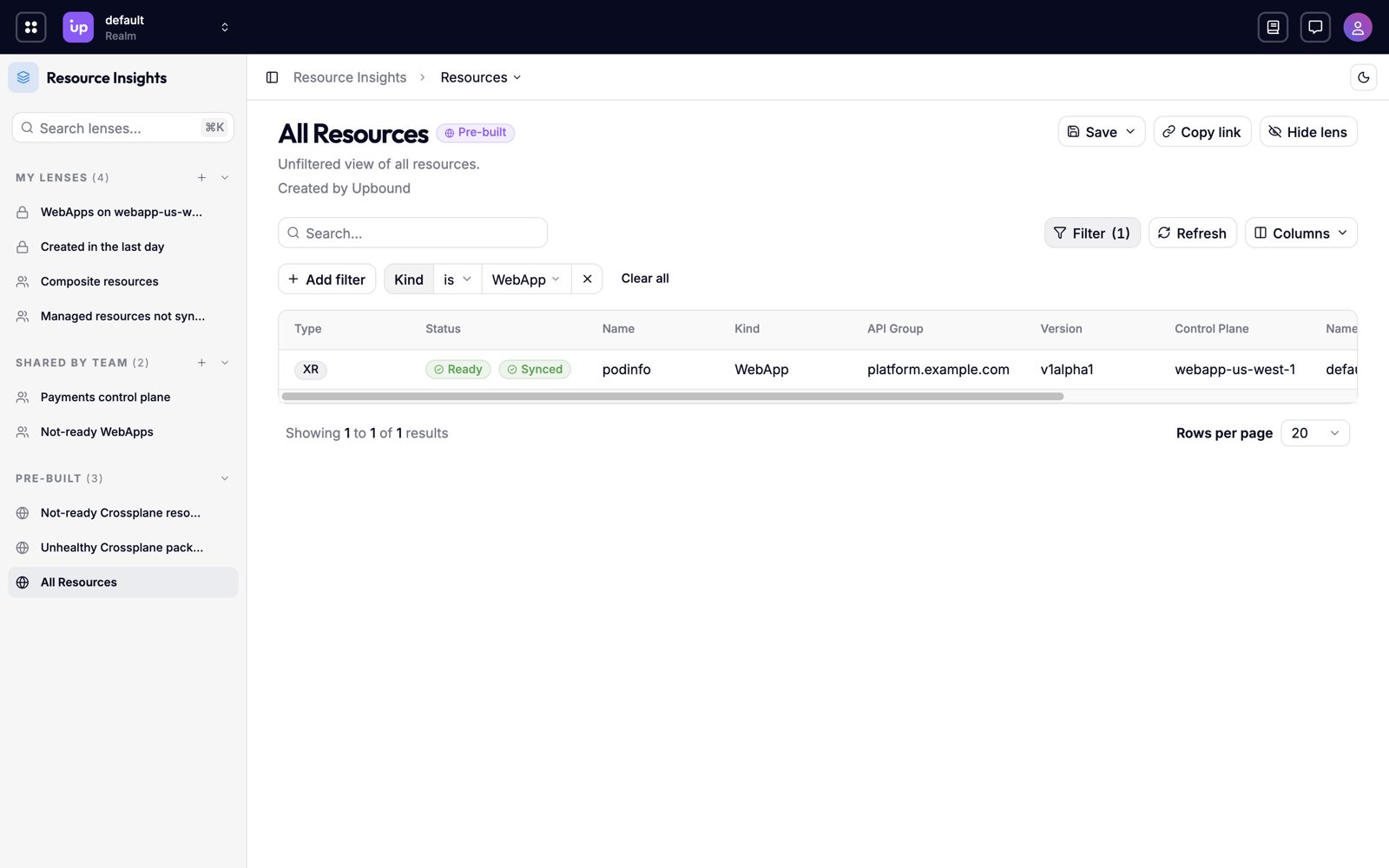
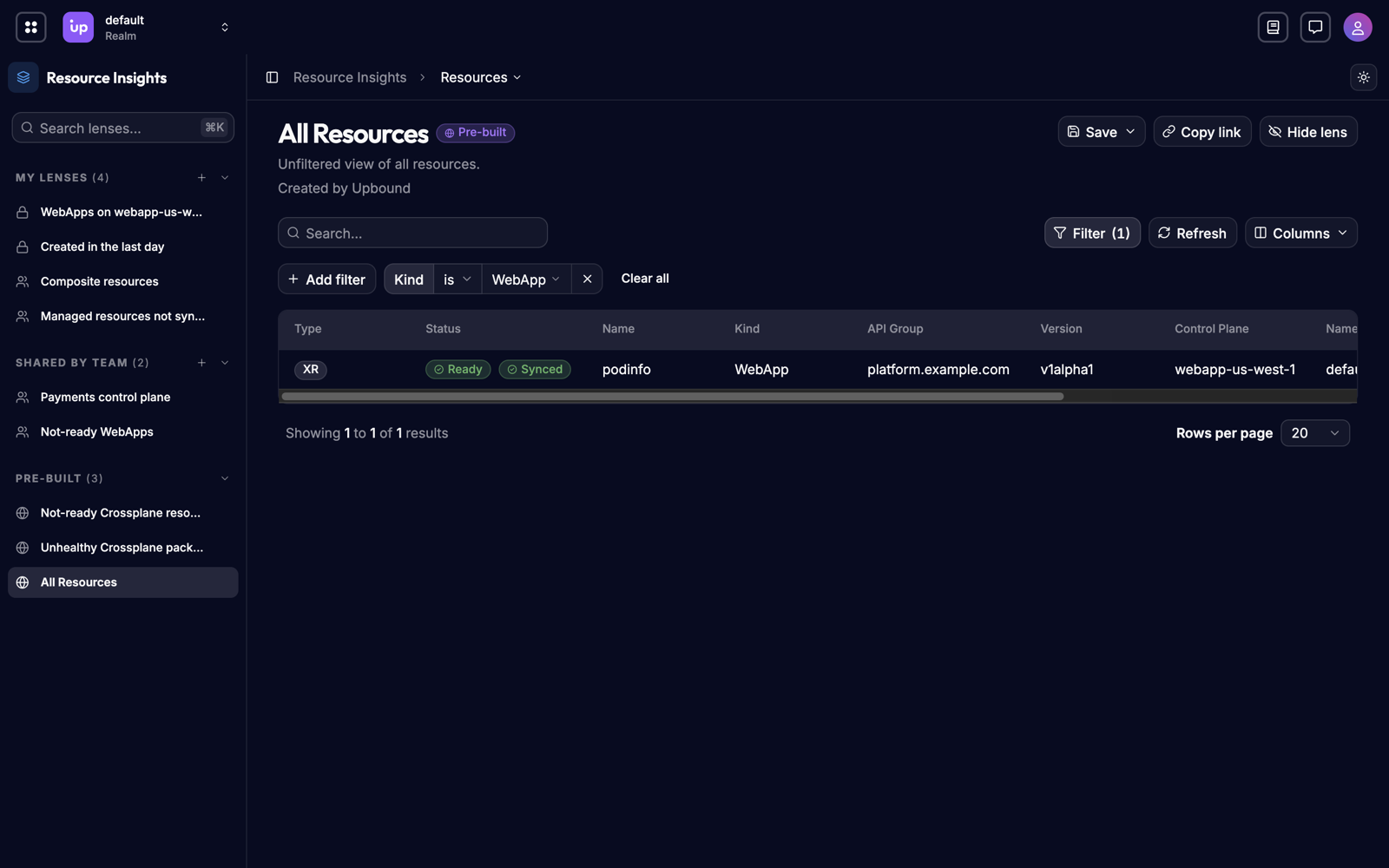
The filter appears as a chip above the list, and the count updates to the number of matches:
-
Add more filters to narrow further. A resource must match every filter to stay in the list.
Remove a filter with the × on its chip.
Inspect a resource
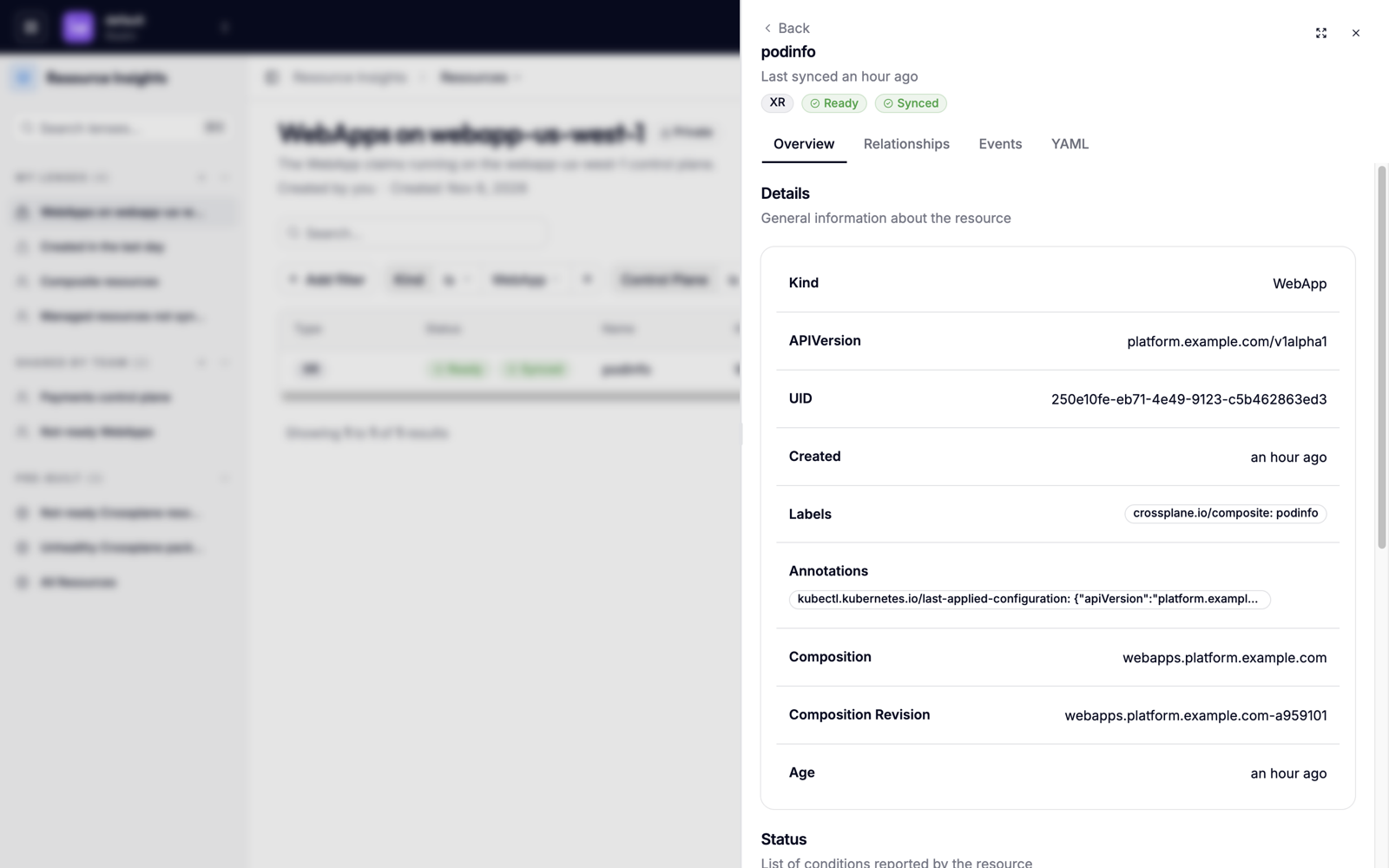
Select a row to open the resource's detail drawer.
-
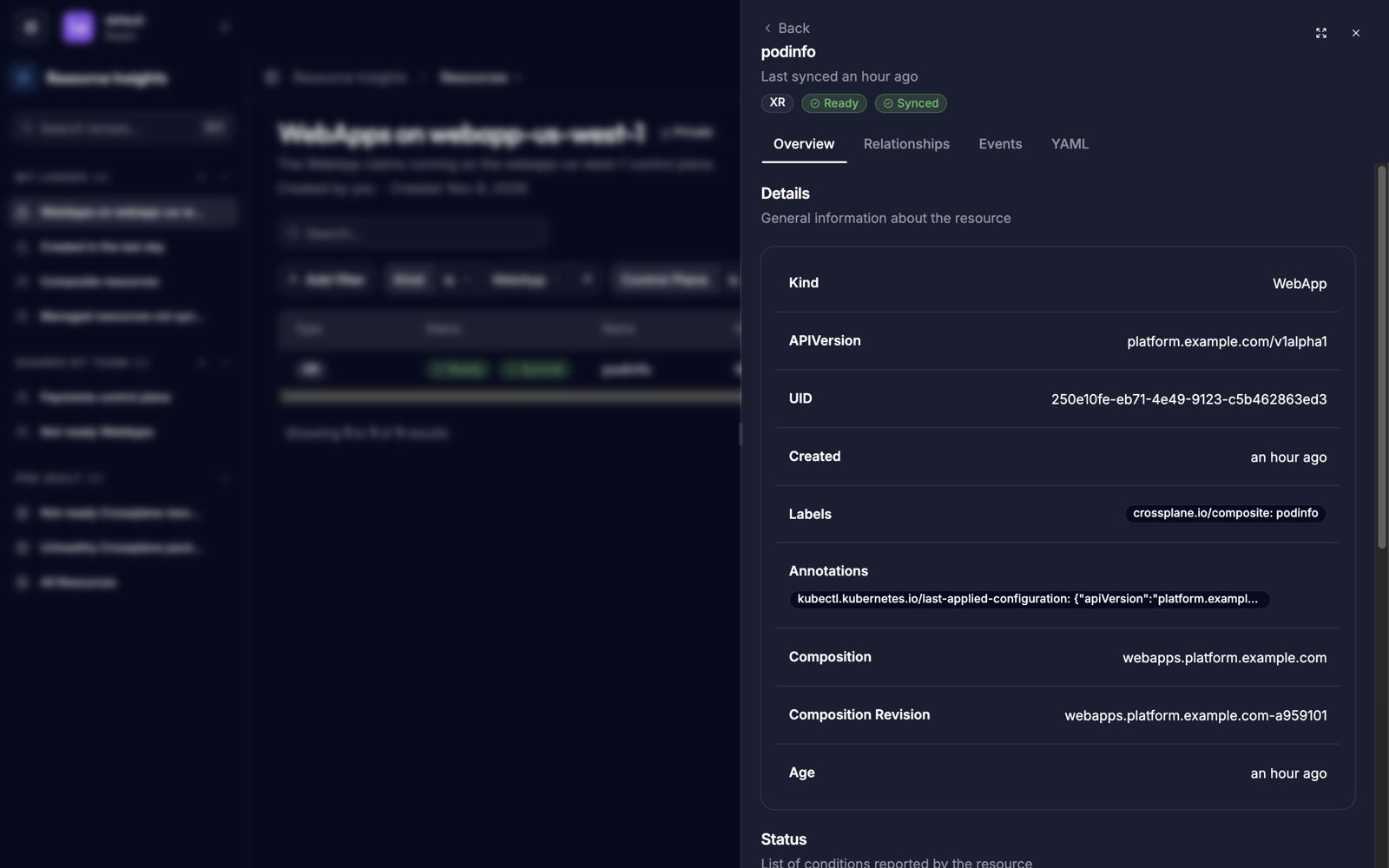
Read the Overview tab for the resource's identity, its control plane and realm, and its health conditions.
-
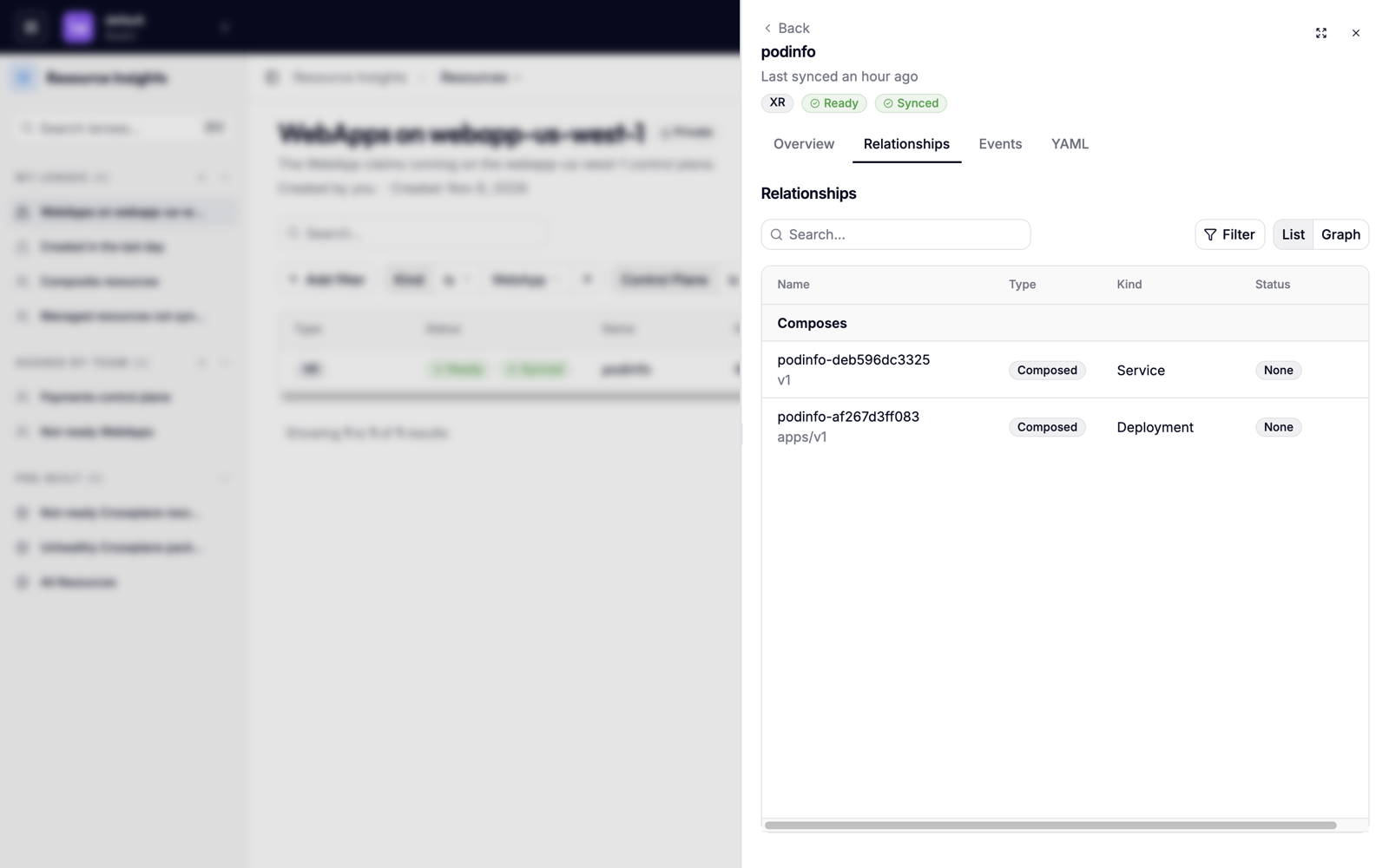
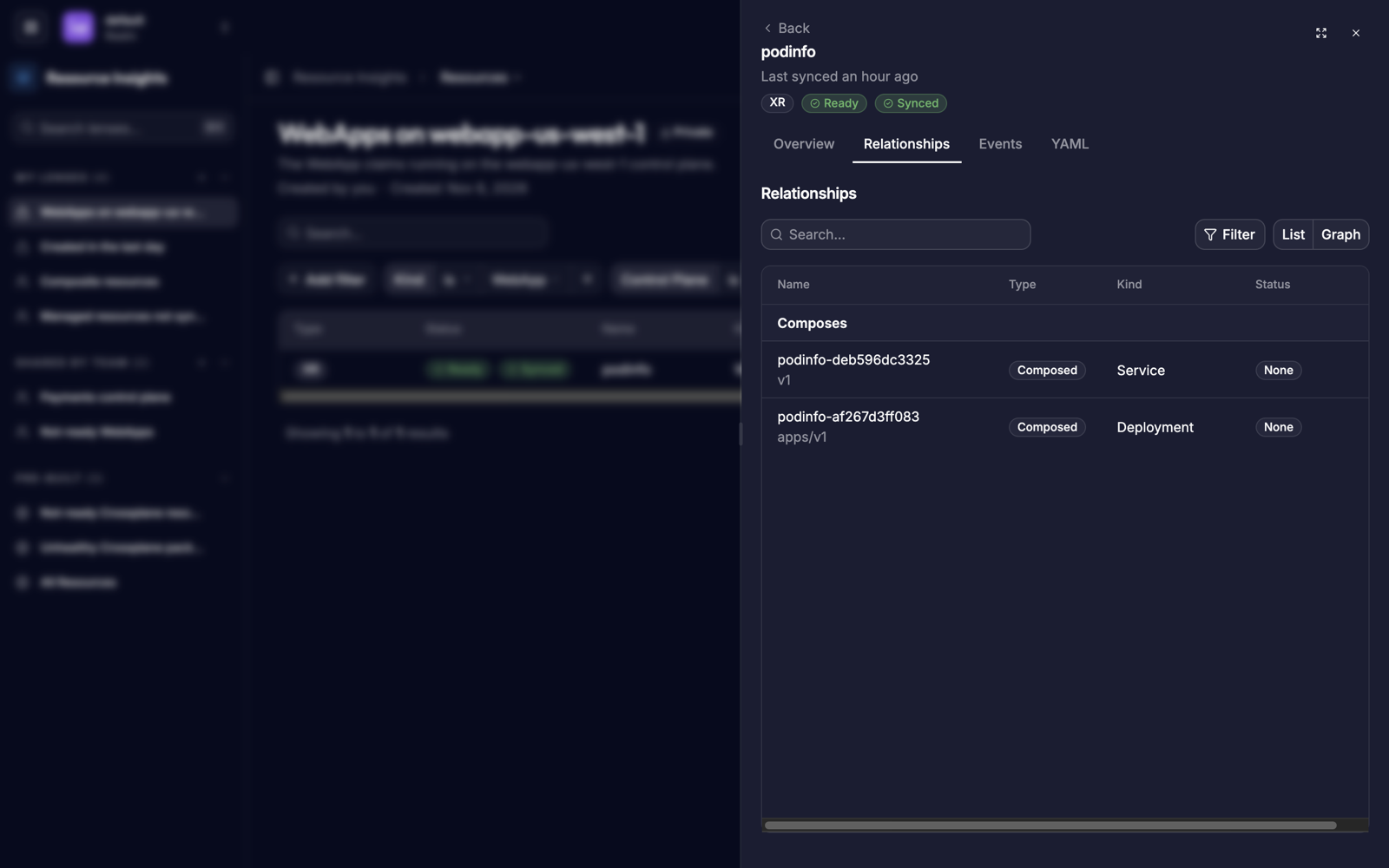
Open Relationships to see what the resource composes, what it references, and what references it.
-
Open Events for the Kubernetes events its control plane recorded.
-
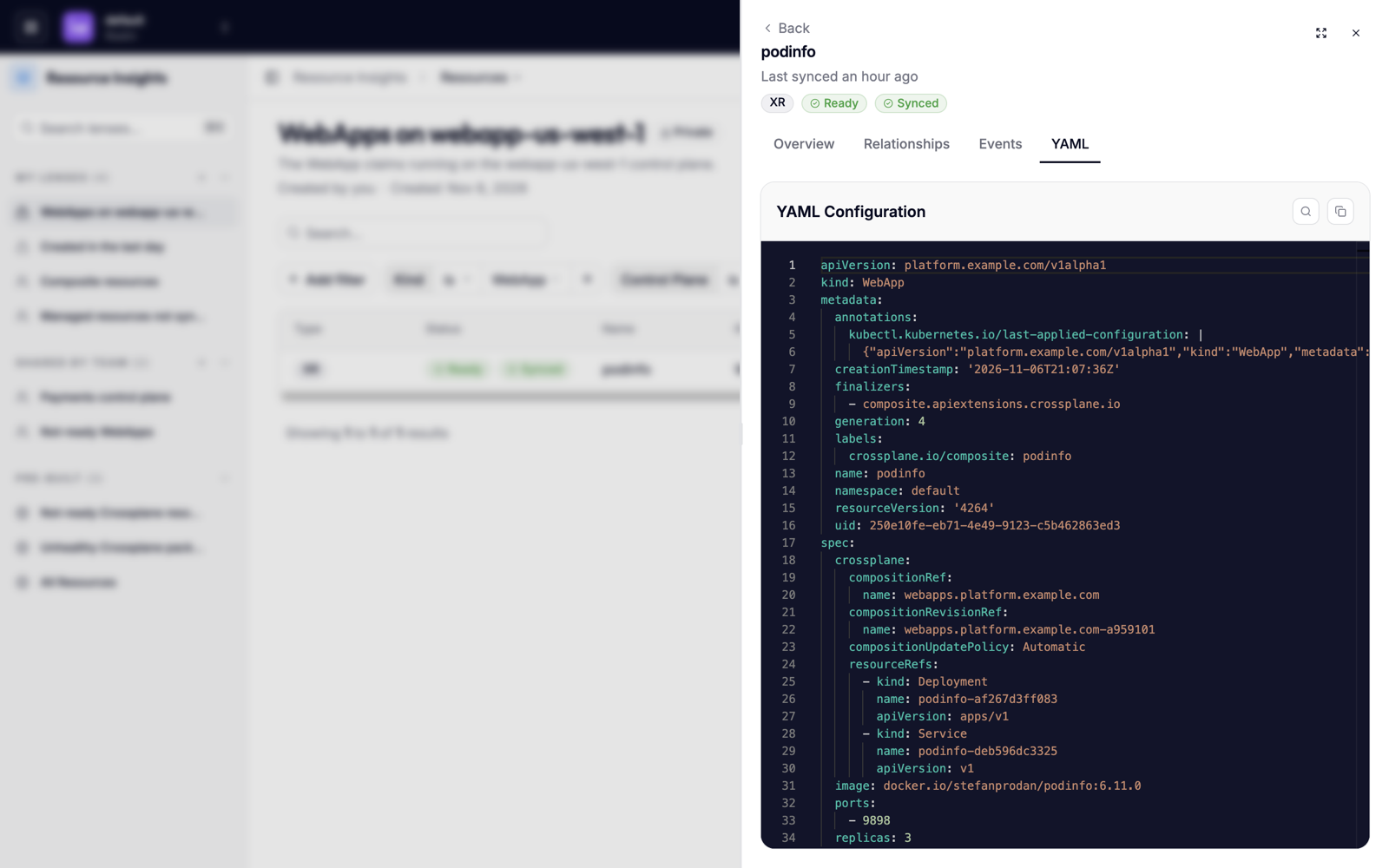
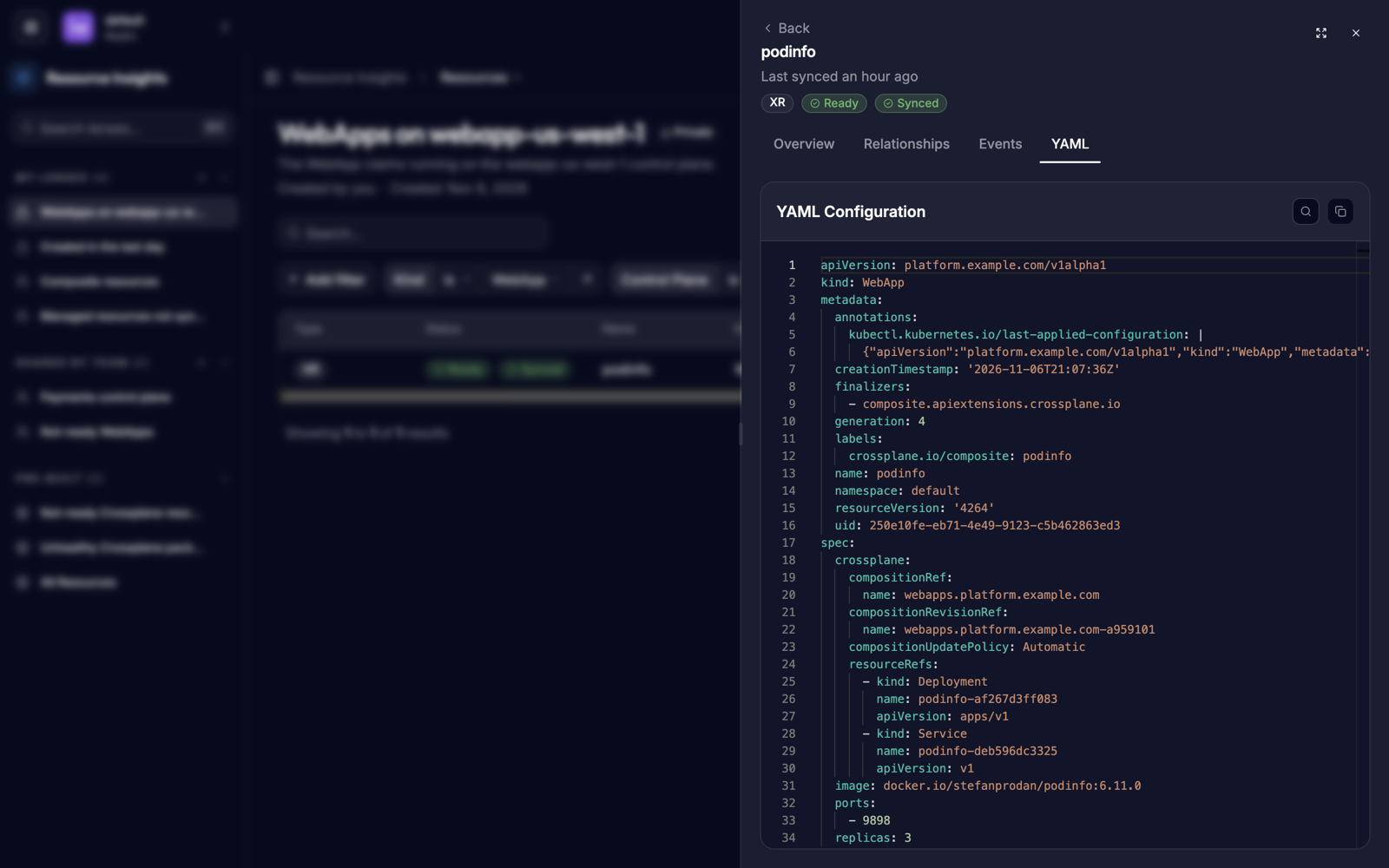
Open YAML for the full object.
Check fleet health on the dashboard
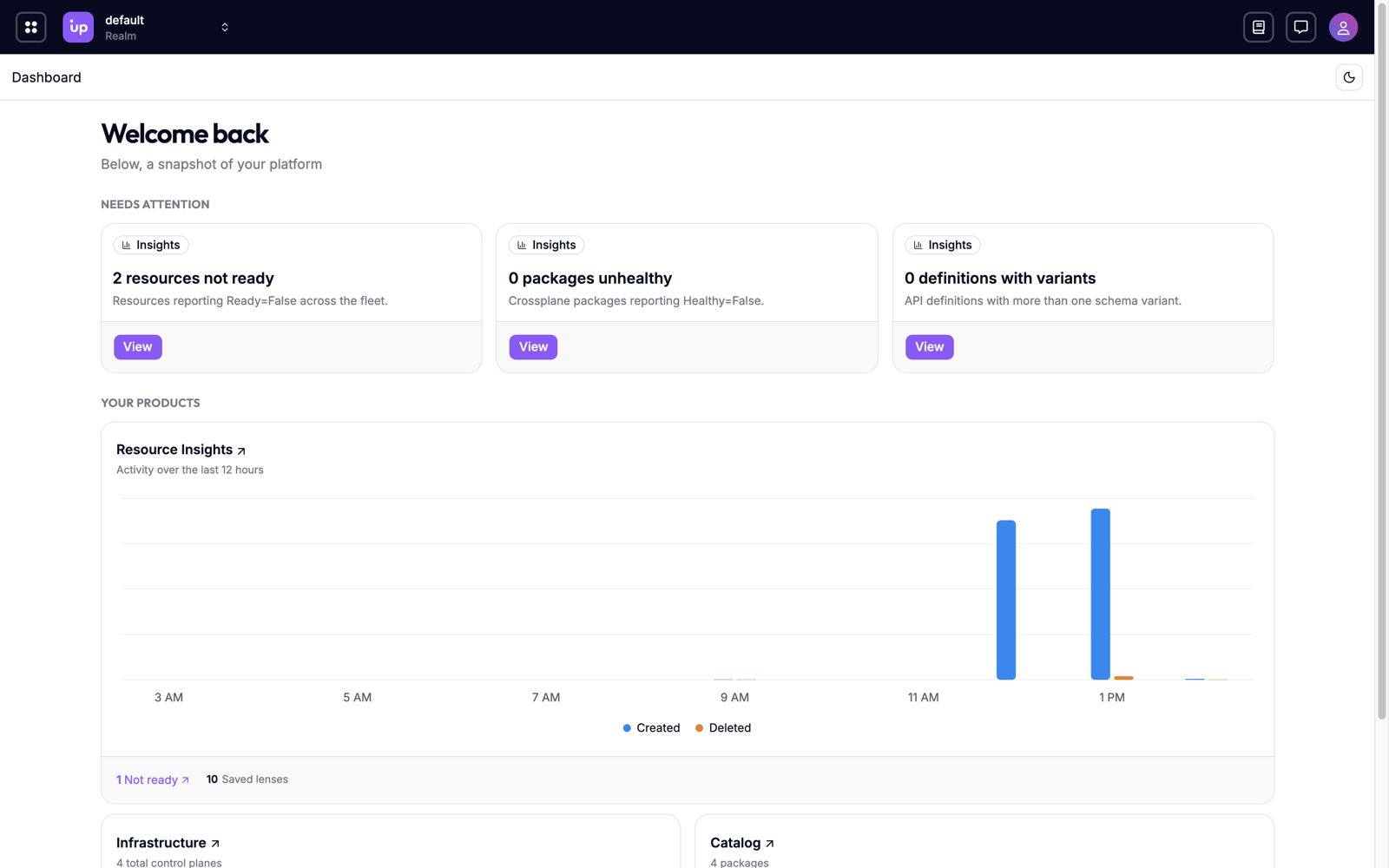
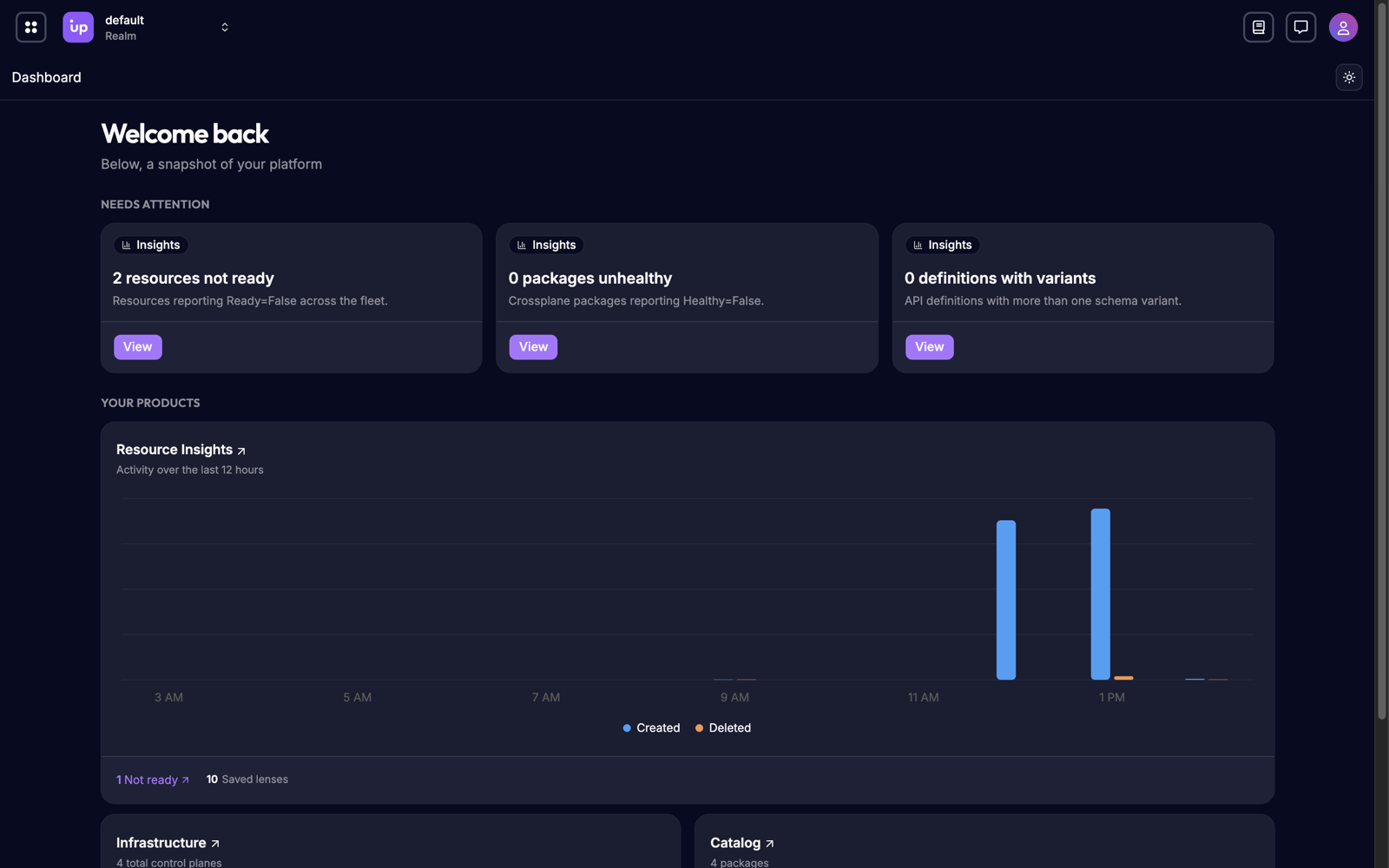
The dashboard's Needs Attention row has three counts for the realm you select, each linked to the matching list:
- Resources reporting
ReadyasFalse. - Crossplane packages (providers, configurations, functions, and AddOns)
reporting
HealthyasFalse. - Definitions with more than one schema variant.
Its activity chart shows how many resources were created and deleted over the last 12 hours. Open it from Dashboard in the navigation menu.
Save the view
To come back to the same search and filters, save them as a lens. See Use lenses in the Console.
Troubleshoot
| Symptom | Cause |
|---|---|
| A resource you expect is missing | It's in a realm your roles don't reach, or Hub hasn't synced it yet. See How Insights data works. |
| Another user sees a different count | Results reflect each user's access. See Access-scoped results. |
| The list shows an older state than the control plane | Hub shows what the control plane last reported. Open the resource and check when Hub last synced it. |